
SAP Business Partner (BP) & CVI in S/4HANA: The Complete Step-by-Step Guide
If you enter traditional transaction codes like XK01, MK01, or XD01 in an SAP S/4HANA system, you are immediately greeted with a redirection message:
"Transaction XK01 is obsolete. You are being redirected to transaction BP."
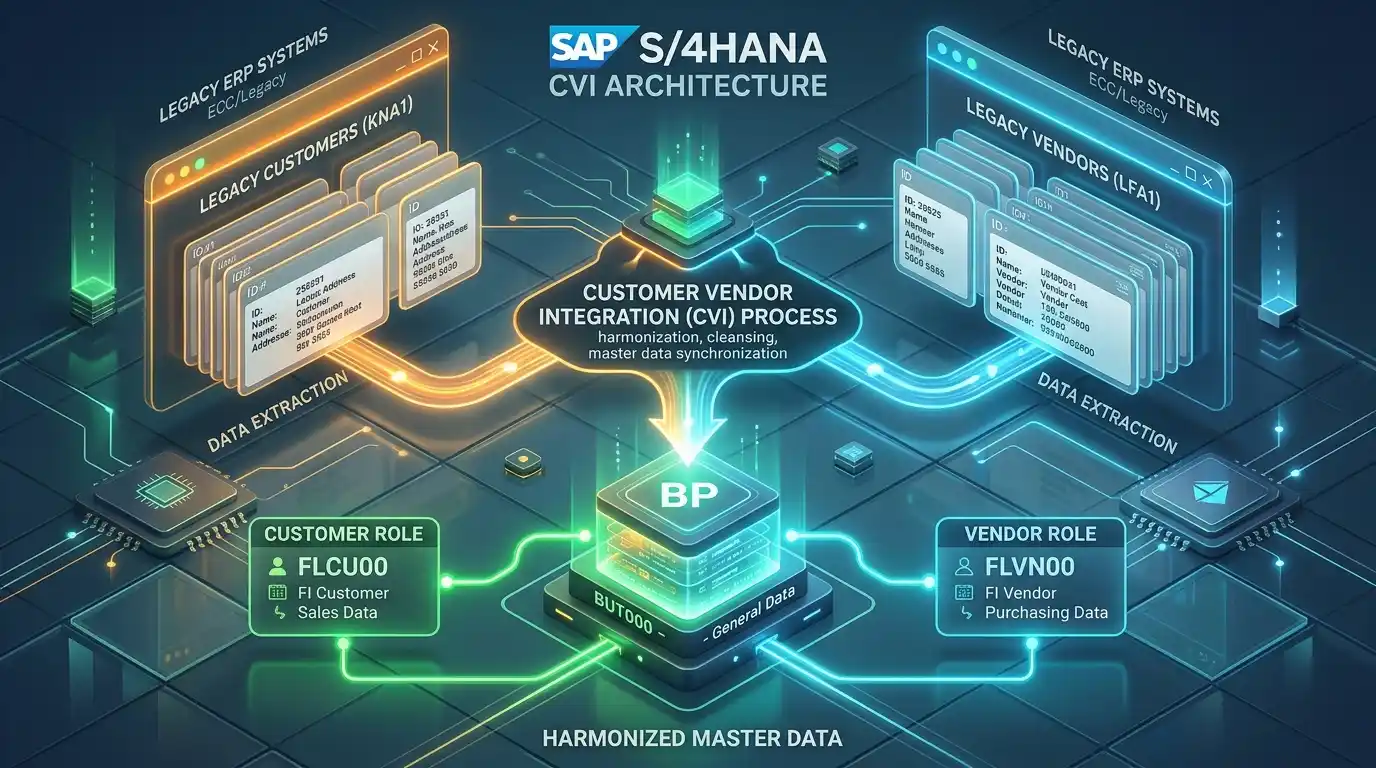
The mandatory transition from separate Customer and Vendor master records to the centralized Business Partner (BP) data model via Customer-Vendor Integration (CVI) is one of the most significant changes introduced in SAP S/4HANA. In brownfield migrations, pre-checks fail more often due to CVI synchronization errors than any other single factor.
In this mentor's architectural guide, we break down why SAP mandated the Business Partner model, detail the exact configuration steps in SPRO, explain BP categories and roles, master number range synchronization, and solve common synchronization errors.
Why Did SAP Replace Traditional Vendors and Customers with BP?
In legacy SAP ECC 6.0:
- A vendor was created in table
LFA1(LFB1,LFM1). - A customer was created in table
KNA1(KNB1,KNVV). - If an enterprise company (e.g., Tata Motors) acted as both a Supplier of components and a Customer purchasing services, two completely separate master records had to be maintained.
Advantages of the S/4HANA Business Partner Model:
- Single Source of Truth: A legal entity is created once as a Business Partner and assigned different roles (
Supplier,Customer,Contact Person,Bank). - Multiple Addresses & Validity Dates: In ECC, a vendor had one primary address. In S/4HANA BP, you can maintain multiple plant delivery addresses, billing addresses, and tax jurisdictions with time-dependent validity periods.
- Harmonized Partner Hierarchies: Simplifies corporate parent-subsidiary relationships and complex credit management workflows.
- Mandatory for Clean Core & Cloud: Standardized API endpoints in S/4HANA Cloud rely strictly on the
BusinessPartnerentity.
Understanding BP Categories, Groupings & Roles
1. The Three Business Partner Categories
When creating a BP in transaction BP, you must choose the Category (cannot be altered once saved):
- Category 1: Person (Private individuals, employees, consultants).
- Category 2: Organization (Corporate companies, legal entities, vendors, clients).
- Category 3: Group (Unincorporated associations, consortiums, partnerships).
2. Core BP Roles for MM and FICO Consultants
A Business Partner starts in role 000000 (General Business Partner Data). To enable procurement and finance transactions, functional consultants extend the BP into specialized roles:
| BP Role | Technical Name | Department | What It Configures | Corresponding ECC Equivalent |
|---|---|---|---|---|
000000 | Business Partner (Gen.) | General | Name, Address, Tax IDs (PAN, GSTIN), Bank Details | General Data (LFA1 / KNA1) |
FLVN00 | Supplier (Financial) | Finance (FI-AP) | Company Code data, Reconciliation Account, Payment Terms | Company Code View (FK01 / LFB1) |
FLVN01 | Supplier (Purchasing) | MM Purchasing | Purchasing Org data, Order Currency, Schema Group, Partner Roles | Purchasing View (MK01 / LFM1) |
FLCU00 | Customer (Financial) | Finance (FI-AR) | Company Code data, Reconciliation Account, Dunning | Company Code View (FD01 / KNB1) |
FLCU01 | Customer (Sales) | SD Sales | Sales Area data, Shipping Conditions, Pricing, Invoicing | Sales Area View (VD01 / KNVV) |
4-Step SPRO Configuration Guide for CVI Synchronization
To make transaction BP create vendor and customer records in the background, you must configure Customer-Vendor Integration (CVI).
Step 1: Define BP Grouping and Assign Number Range
- IMG Path: Cross-Application Components $\rightarrow$ SAP Business Partner $\rightarrow$ Business Partner $\rightarrow$ Basic Settings $\rightarrow$ Number Ranges and Groupings $\rightarrow$ Define Groupings and Assign Number Ranges.
- Create Grouping (e.g.,
DOMV- Domestic Vendors). - Assign an internal or external Number Range.
Step 2: Define Vendor Account Groups in Financial Accounting
- IMG Path: Financial Accounting $\rightarrow$ Accounts Receivable and Accounts Payable $\rightarrow$ Vendor Accounts $\rightarrow$ Master Data $\rightarrow$ Preparations for Creating Vendor Master Data $\rightarrow$ Define Account Groups with Screen Layout.
- Create Vendor Account Group (e.g.,
V001- Domestic Raw Material Vendors). - Assign a Number Range via
OBAS.
Step 3: Configure Direction BP to Vendor in CVI Master Settings
This is where the magic happens:
- IMG Path: Cross-Application Components $\rightarrow$ Master Data Synchronization $\rightarrow$ Customer/Vendor Integration $\rightarrow$ Business Partner Settings $\rightarrow$ Settings for Vendor Integration $\rightarrow$ Field Assignment for Vendor Integration $\rightarrow$ Assign Keys $\rightarrow$ Define Number Assignment for Direction BP to Vendor.
Here you map: $$\text{BP Grouping (DOMV)} \quad \longleftrightarrow \quad \text{Vendor Account Group (V001)}$$
The Crucial "Same Numbers" Decision
- Checkbox "Same Numbers":
- If checked, the SAP system ensures that
BP Number == Vendor Number. (e.g., BP100050creates Vendor100050). - Prerequisite: The BP Number Range must be Internal, and the Vendor Account Group Number Range must be set to External with identical numeric boundaries!
- Highly recommended in enterprise greenfield implementations for operational clarity.
- If checked, the SAP system ensures that
Step 4: Activate Synchronization Postings
- IMG Path: Cross-Application Components $\rightarrow$ Master Data Synchronization $\rightarrow$ Synchronization Control $\rightarrow$ Synchronization Control.
- Ensure Active indicators are checked for:
BPtoVENDORBPtoCUSTOMER
Step-by-Step: Creating a Supplier in T-Code BP
- Execute T-Code:
BP. - Click Create Organization.
- Select Grouping:
DOMV (Domestic Vendors). - In role
000000(General Data):- Enter Company Name:
Tata Steel Ltd. - Enter Address, Country
IN, Region, Postal Code. - Enter Legal Data: GSTIN, PAN under Identification / Tax Numbers tab.
- Enter Company Name:
- Click Save. The system assigns BP Number (e.g.,
5000100). - Switch to Change Mode $\rightarrow$ Select Role
FLVN00(Supplier FI).- Click the Company Code button at the top.
- Enter Company Code
1000. - Maintain Reconciliation Account (e.g.,
160000 - Trade Creditors), Payment Terms0001.
- Select Role
FLVN01(Supplier Purchasing).- Click the Purchasing button at the top.
- Enter Purchasing Organization
1000. - Maintain Order Currency
INR, Schema Group, Partner Functions (VN,OA,PI).
- Click Save.
The Business Partner is now completely functional and ready for Purchase Order creation in ME21N!
Migration Tools: MDS_LOAD_COCKPIT for ECC to S/4HANA
In brownfield migration projects, converting hundreds of thousands of legacy ECC vendors and customers to Business Partners is executed using the Master Data Synchronization Cockpit:
- Transaction:
MDS_LOAD_COCKPIT - Choose Source:
Vendor to Business PartnerorCustomer to Business Partner. - Monitor synchronization queues via
MDS_PPO2(Post Processing Office) to resolve data validation errors (e.g., missing postal codes, invalid tax IDs, overlapping number ranges).
3 Common CVI Errors & How to Fix Them
Error 1: Account group V001 uses external number assignment but no number was entered
- Cause: In CVI key assignment, "Same Numbers" was checked, but the Vendor Account Group number range was set to Internal instead of External.
- Fix: In T-Code
VN01, flag the number range assigned to account groupV001as External (Ext).
Error 2: Reconciliation account is missing or invalid for company code 1000
- Cause: Attempted to save role
FLVN00without entering a valid Balance Sheet Vendor Reconciliation G/L account. - Fix: Navigate to Company Code tab in role
FLVN00and enter the reconciliation account configured inFS00.
Error 3: Tax Number Category does not match country IN
- Cause: Entering a 15-digit Indian GST number under the generic tax tab without selecting Tax Category
IN3(GSTIN). - Fix: In BP Identification tab, select Tax Category
IN3for GSTIN andIN1for Income Tax PAN.
Conclusion & Career Relevance
Understanding the Business Partner (BP) architecture and CVI configuration is mandatory for every functional consultant in 2025 and beyond. It is frequently tested in senior consultant interviews at Capgemini, PwC, and Deloitte.
Practice this live on real S/4HANA enterprise servers in our SAP MM Training Course and SAP FI Training.
Frequently Asked Questions (FAQ)
Is Business Partner mandatory in SAP S/4HANA?
Yes. In SAP S/4HANA, the Business Partner approach via Customer-Vendor Integration (CVI) is 100% mandatory. Legacy transaction codes like XK01, MK01, and XD01 are blocked and redirected to BP.
What is the difference between BP Role FLVN00 and FLVN01?
FLVN00 corresponds to the Financial Accounting vendor view (Company Code data, reconciliation accounts, payment terms). FLVN01 corresponds to the Materials Management purchasing view (Purchasing Organization data, order currency, purchasing partner functions).
Can the same Business Partner number be identical to the Vendor number?
Yes. By configuring the "Same Numbers" indicator in CVI customizing and defining identical number ranges (Internal for BP, External for Vendor Account Group), the system ensures BP ID == Vendor ID.
Ready to Accelerate Your Career with SAP Architecture?
Stop struggling with fragmented tutorials. Get trained personally by Akshay Kumar (6+ years experience, 500+ placed professionals) with real-time S/4HANA server access, business blueprint scenarios, and 100% interview preparation.

Related Tutorials & Articles
Continue learning with more insights from ERP Academy experts.

SAP S/4HANA Greenfield vs Brownfield: Decision Matrix, Architecture & Migration Roadmap
Compare SAP S/4HANA Greenfield, Brownfield (System Conversion), and Selective Data Transition. Full architectural decision matrix covering Clean Core strategy, custom code remediation, downtime constraints, and cost implications.
Read Guide
Why SAP Clean Core Is Making or Breaking S/4HANA Migrations (And What Developers Need to Know)
Tired of hearing 'Keep the Core Clean' buzzwords? Here is an architect's practical guide to what SAP Clean Core actually means, why legacy Z-programs choke upgrades, ABAP Cloud vs Classic ABAP, and how to build cloud-ready extensions on BTP.
Read Guide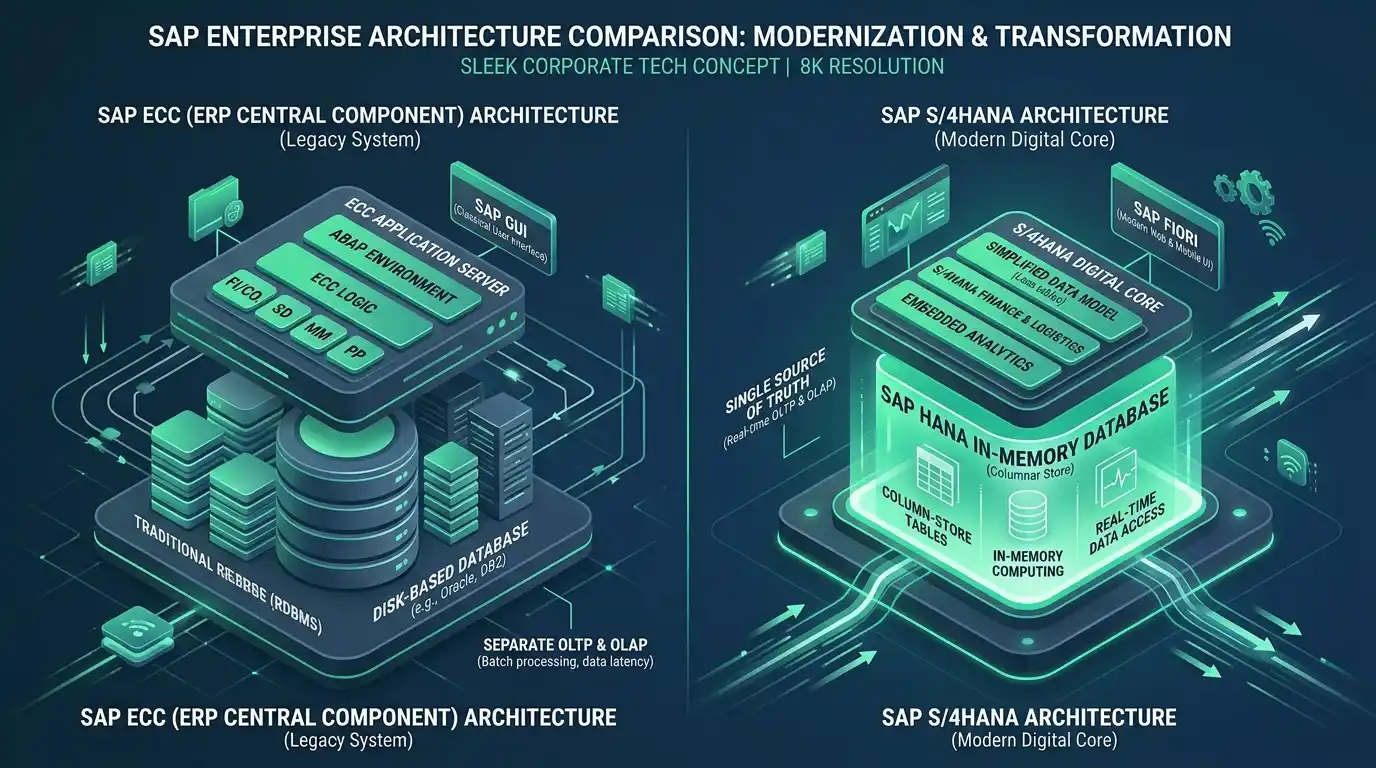
SAP S/4HANA vs SAP ECC 6.0: 12 Critical Differences Every Consultant Must Know (2025/2026 Guide)
Still confused about what actually changes between SAP ECC and S/4HANA? Here is a definitive mentor-backed breakdown of the 12 core differences—from the Universal Journal (ACDOCA) and Business Partner (BP) model to Sourcing & Procurement simplifications and Fiori UX.
Read Guide